AI Ad Generator for Product Photo to Video Ads
Sign In
CréditosKling 3.0

AI Ad Generator for Product Photo to Video Ads

Upload one clear product photo, adjust the editable motion prompt, and create a short image-to-video ad with Picloft's existing Kling 3.0 workflow. The template keeps sound off by default and asks the model to preserve product shape, color, packaging, label placement, and readable text. In the verified workflow, output framing follows the uploaded photo rather than a separate aspect-ratio setting, so prepare the source image for the placement you need. Video generation uses credits, and the current required amount is shown in the generator.

Upload Product Photo*(0/1)
Try the Fictional Product Sample

410 / 2000

Sonido
Créditos necesarios:-

AI Ad Generator for Product Photo to Video Ads

Vídeo

See the Product Photo and the Intended Ad Direction

A useful AI video ad generator page should show the source material as well as the motion direction. These fictional, AI-created Solena assets are owned for this page and contain no real brand, creator, or customer identity.

Start with One Clean Product Photo

The 4:5 source image keeps the entire bottle, cap, label, pedestal, and surrounding negative space visible. That gives the image-to-video model clear constraints for silhouette, materials, color, and packaging. A centered product photo is not mandatory, but the main product should be sharp, fully visible, and large enough to read. Avoid screenshots, collages, watermarks, busy store shelves, cropped packaging, or images where a hand hides the label. The sample is fictional, so you can select it to inspect the generator before uploading your own authorized product image.
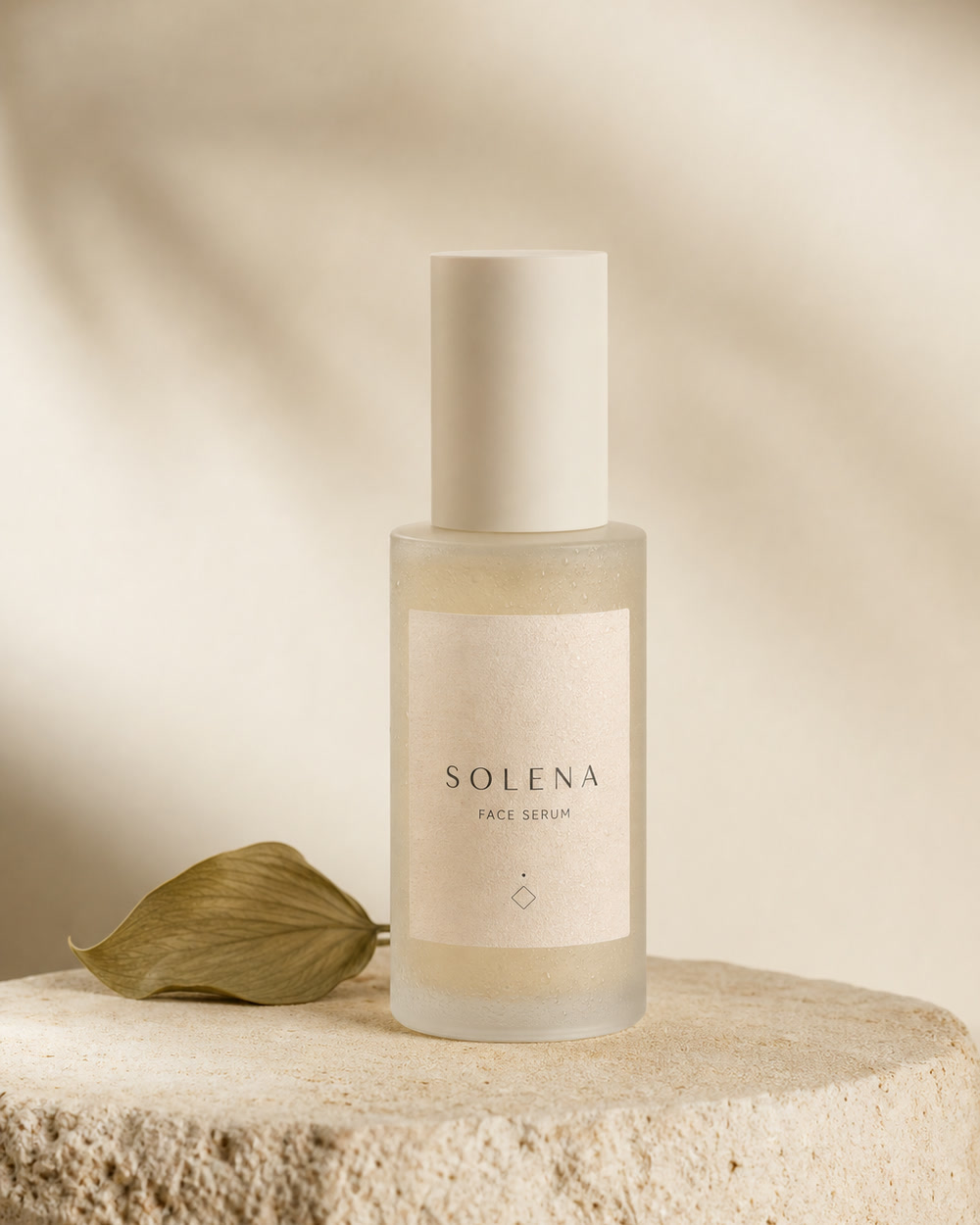
Fictional Solena skincare bottle used as the product photo input

Plan Motion That Supports the Product

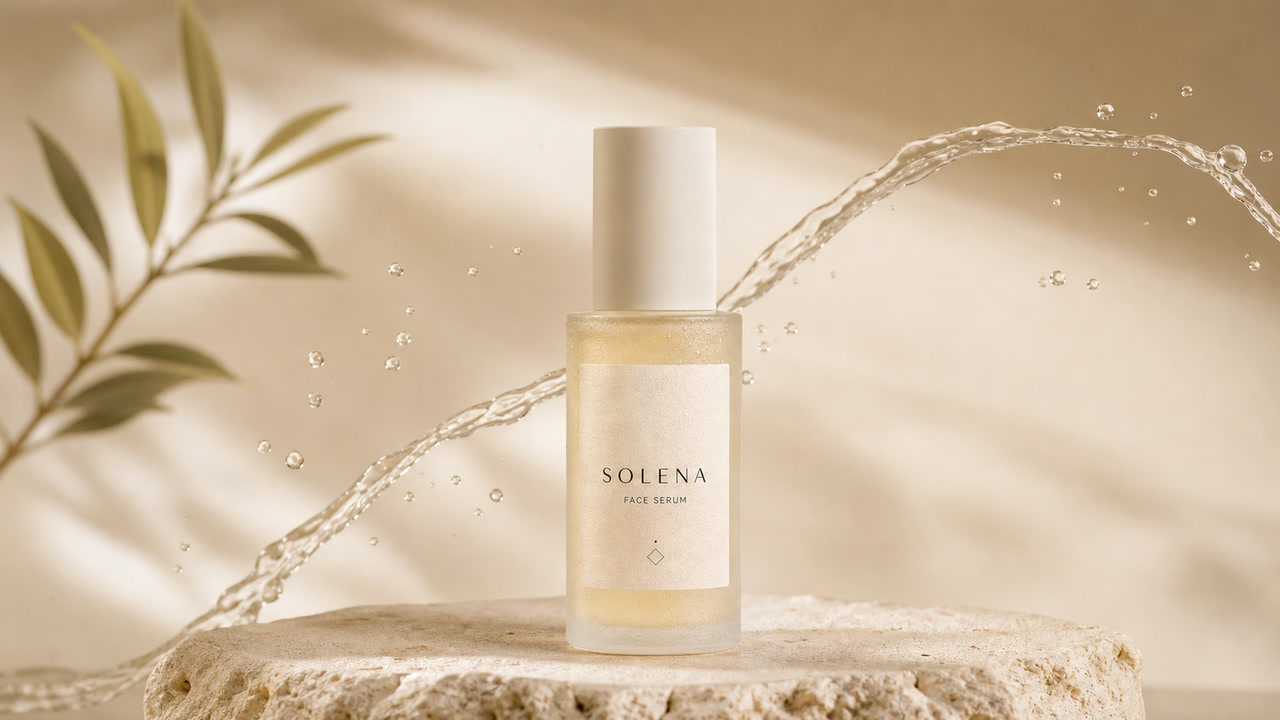
The 16:9 poster shows a restrained commercial direction: a slow push-in, a controlled light sweep, gentle background leaves, and a thin water arc that does not cover the bottle. The five-second preview is an illustrative motion study assembled from owned page artwork, not a claim that every model run will recreate the exact frames. AI video remains probabilistic. Use the editable prompt to describe the camera move, pace, light, and environmental motion while repeating the details that must stay fixed. Review every generated result for label drift, distorted packaging, duplicated products, or unexpected props before using it in a campaign.

Practical AI Video Ad Use Cases

Picloft creates a short video file from one product image and prompt. You decide how that file fits into a larger campaign, edit, listing, or media plan.

TikTok and Vertical Social Ad Drafts

Start with a vertical source photo when you want a vertical concept for TikTok, Reels, Shorts, or mobile story placements, because this verified image-to-video workflow follows the source framing. Keep the product large in frame and use the prompt for one clear movement rather than a sequence of unrelated shots. Add final copy, music, captions, legal lines, and platform-specific safe zones in your normal video editor after generation.

YouTube and Landing Page Product Motion

Prepare a wide source photo for a product reveal, website media section, YouTube creative draft, presentation, or campaign storyboard. A slow arc, push-in, turntable-style move, light sweep, or restrained environmental effect usually communicates more clearly than asking a short clip to tell an entire story.

Amazon and E-commerce Listing Concepts

Crop or compose the source photo for the e-commerce listing, Shopify page, marketplace content module, or seller presentation you intend to use. Picloft does not publish directly to Amazon or a storefront. Export the generated clip, verify the current marketplace rules, add required disclosures, and upload through the platform's own workflow.

Creative Direction Before a Full Shoot

Turn an approved product still into a fast motion reference before booking a studio, animator, or media campaign. The clip can help a team compare pace, camera direction, lighting, and composition. Treat it as an experiment and briefing artifact until the product, label, claims, and visual details have passed brand and legal review.

How to Make a Product Photo to Video Ad

The working generator stays at the top of the page. These three steps explain how to prepare a source image, write a product-safe prompt, and review the exported video.

1. Upload a Product Image You May Use

Choose one JPG, PNG, or WebP up to 10 MB. Use an image you own, licensed artwork, or a customer asset you are authorized to process. The product should be in focus, fully inside the frame, and separated from the background. Visible label text helps you identify drift, but small typography is still difficult for generative video models. Remove private data, unauthorized logos, people who have not consented, marketplace screenshots, and third-party watermarks before uploading.

Clear fictional skincare product image prepared for the AI ad generator

2. Edit the Prefilled Ad Motion Prompt

The prompt is already visible in the text area, so you can edit it in place instead of copying from a helper box. State the camera movement, subject motion, background motion, lighting, pace, and final frame. Then repeat the product details that must not change: silhouette, proportions, color, material, label, logo mark, and packaging text. One coherent shot is usually more stable than asking for an automatic script, multiple scenes, presenters, voice-over, captions, or a complete commercial edit.

Fictional product ad keyframe showing restrained commercial motion

3. Confirm the Source Framing, Generate, and Inspect

The verified image-to-video route follows the uploaded photo's framing, so crop or compose that source for the target placement before upload. Choose a supported duration, keep sound off, and review the displayed credit requirement before starting. When the task finishes, compare the video with the original photo. Download only a result that preserves the real product and does not invent claims, packaging, logos, or unreadable label changes.

What This AI Ad Generator Does and Does Not Do

This page is intentionally built around the product-photo-to-video capability that Picloft can verify today.

It Does: Animate One Product Photo

The template submits one uploaded image, your editable prompt, the selected duration, and supported Kling 3.0 options to Picloft's existing image-to-video generation route. It can create a short motion asset for review and download while following the source image framing.

It Does: Preserve Through Prompt Constraints

The built-in instruction prioritizes product silhouette, color, material, label position, packaging text, and stable commercial motion. These are strong constraints, not guarantees. Every generated frame still needs human review.

It Does Not Assemble a Finished Campaign

Picloft does not automatically research an audience, write a full script, create a presenter, apply a saved brand system, generate captions, localize copy, produce many variants, buy media, or publish to TikTok, YouTube, Amazon, or a storefront from this page.

It Does Not Guarantee Product or Text Fidelity

Generative video can shift small text, reflections, edges, proportions, or background details. Do not use a result that changes regulated claims, ingredients, safety information, prices, trademarks, or the physical product in a misleading way.

Frame the Source Photo Before You Generate

The verified Kling 3.0 image-to-video run followed the uploaded photo's framing even when a separate aspect-ratio value was present, so this page does not expose that value as a reliable control. Crop or compose the source image for the intended placement and leave room for overlays you will add later.

9:16 Vertical

Prepare a 9:16 source photo for TikTok, Instagram Reels, YouTube Shorts, stories, and mobile-first previews. Keep the product near the visual center and avoid important packaging details at the extreme top or bottom, where platform overlays may appear.

16:9 Landscape

Prepare a 16:9 source photo for YouTube, landing-page sections, presentation decks, wide display placements, and product-story concepts. Horizontal space can support an arc, pan, or environmental movement while the product stays readable.

1:1 Square

Prepare a 1:1 source photo for social feeds, e-commerce modules, and creative reviews. A simple centered composition usually survives square framing better than a product placed near an edge.

AI Ad Generator FAQ

Answers about product inputs, prompts, formats, credits, fidelity, and realistic campaign use.

What is an AI ad generator?

An AI ad generator uses a model to create advertising-oriented media from inputs such as a prompt or product image. This Picloft page focuses on one verified workflow: turning a single product photo and editable motion prompt into a short image-to-video clip.

Can I turn a product photo into a video ad?

Yes. Upload one clear product image already composed for the target placement, describe the motion and lighting, choose a supported duration, then generate. The verified route follows source-image framing. Review the result carefully because small labels, logos, reflections, and packaging details can change across frames.

Is the AI ad generator free?

You can open the page, choose the sample, and edit the generator settings without charge. Starting a video task uses Picloft credits. The generator displays the current required amount before you submit, so the page does not promise unlimited free generation.

Can it create ads for TikTok, YouTube, or Amazon?

It can create a downloadable product-motion video for those workflows. Prepare the source photo in the vertical, wide, or square framing required by the target placement because the verified route follows the input image. It does not publish, buy media, add platform metadata, or guarantee compliance with any platform's current advertising or listing rules.

Does Picloft automatically write the ad script or add an avatar?

No. This page creates a short product-motion clip from one image and prompt. It does not provide an automatic campaign script, presenter, talking character, voice-over, caption system, saved brand system, or multi-scene commercial assembly.

How do I keep the product consistent?

Use a sharp source image and name the features that must stay fixed: product shape, dimensions, color, material, label position, logo mark, packaging text, and background relationship. Request one controlled camera move and inspect the finished clip frame by frame. Prompt constraints reduce drift but cannot eliminate it.

How should I frame the source product photo?

Prepare the source at 9:16 for vertical social placements, 16:9 for YouTube and wide website media, or 1:1 for square feeds and e-commerce modules. The verified image-to-video route followed the input framing, so compose for the intended placement before upload instead of relying on a separate output-ratio setting.

Can I use the generated video commercially?

Commercial suitability depends on your rights to the source image, the selected model and plan terms, product claims, music or copy added later, and the destination platform's policies. Use only authorized materials, verify the final video, and obtain legal review when the product or industry requires it.

Turn a Product Photo into a Short Video Ad

Start with one clear, authorized product image composed for your target placement. Edit the prefilled prompt and review the generated clip for product and label fidelity before downloading it.