

Text to short drama clip
Describe one location, a small conflict, visible action, camera behavior, light, mood, and the final reaction. The generator turns that beat into a single short video rather than an entire episode.
Save up to 73% on plans
Video
Browse every other AI video model and effect published on this site in a continuous carousel.
Picloft is designed for a focused unit of production: one short drama clip or storyboard draft at a time. It is useful when you want to test a hook, visualize a scene beat, animate a reference frame, or collect shots for a later edit. It does not automatically write, cast, direct, and edit a complete episode. It also does not promise matching characters across separate generations, synchronized spoken dialogue, a finished soundtrack, or automatic multi-scene continuity. For a longer story, split the script into individual scene beats, generate each clip separately, and assemble the selected clips in your video editor.
Describe one location, a small conflict, visible action, camera behavior, light, mood, and the final reaction. The generator turns that beat into a single short video rather than an entire episode.
Upload one original character portrait or storyboard frame when appearance and composition matter. The image gives the model visual guidance, but exact identity and wardrobe continuity are not guaranteed.
Use 9:16 for a mobile micro-drama hook and 16:9 for a landscape storyboard or cinematic test. Square is available for flexible concept previews.
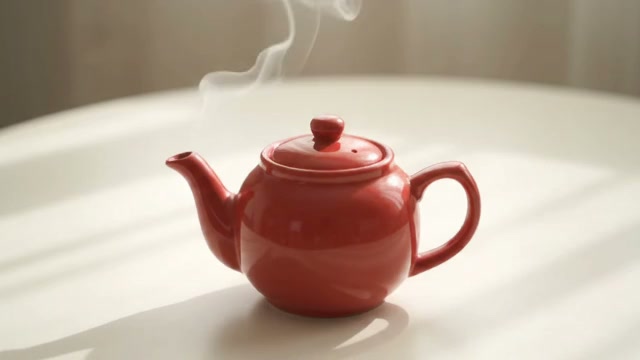
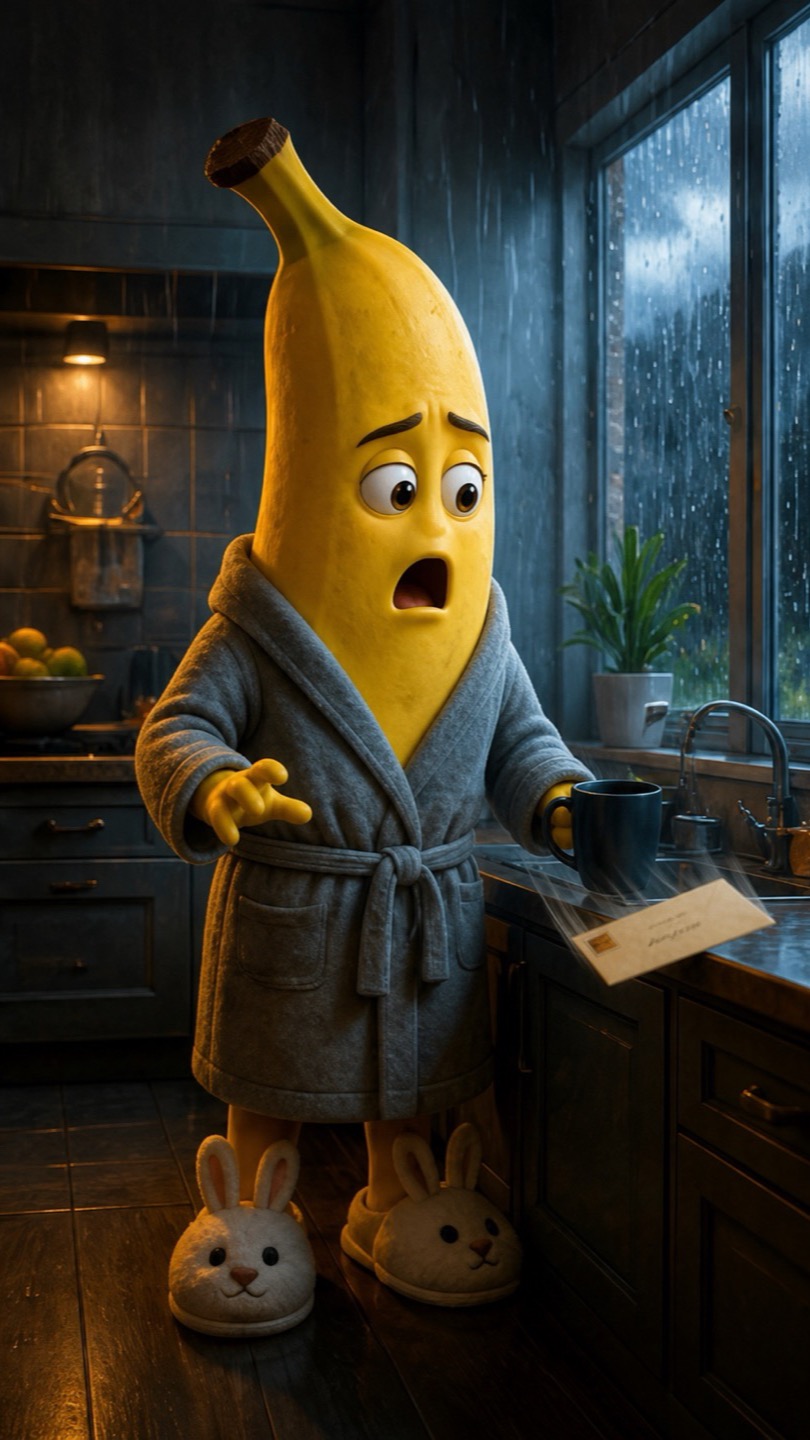
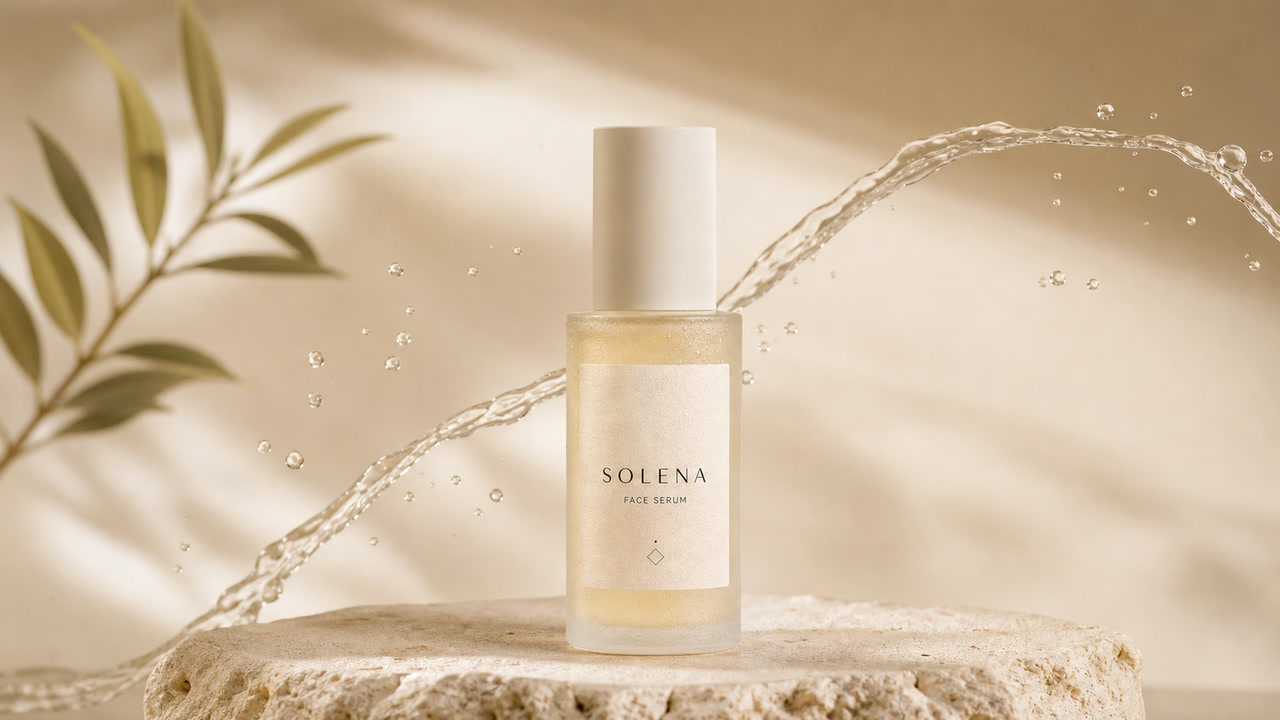
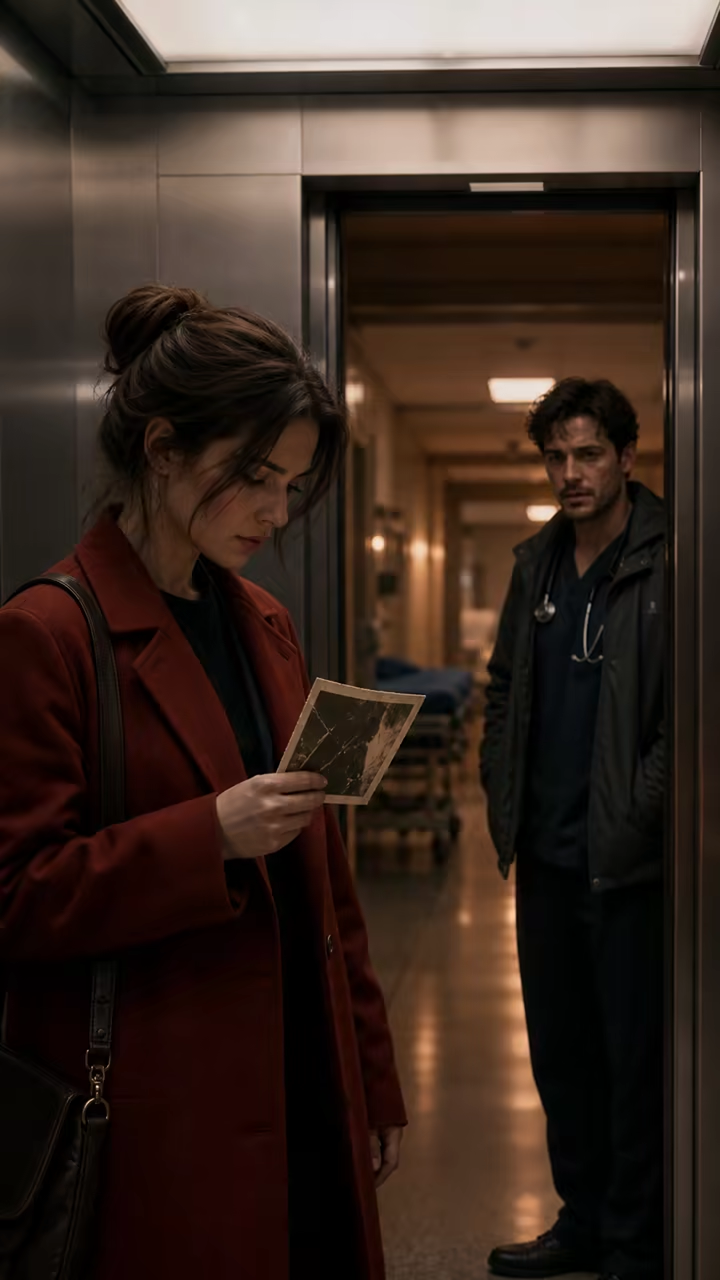
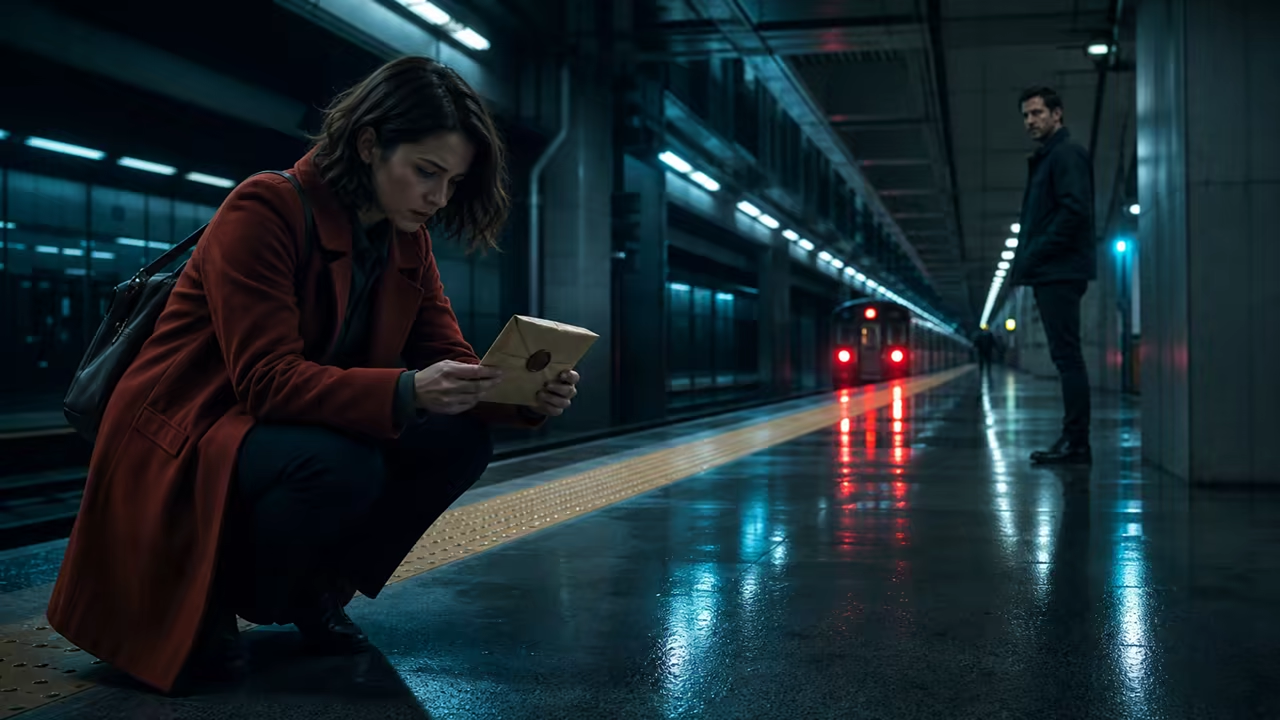
These images are original storyboard references created for Picloft. They show the level of scope that works best: a clear subject, one dramatic turn, and a readable last beat.
A commuter finds a sealed envelope on an empty subway platform and hears someone approach. The scene stays on the platform, uses one slow camera push, and ends on his reaction. That is more controllable than asking for a chase, flashback, and reveal in the same clip.
Try a Suspense BeatA designer discovers her work credited to someone else and places the dated sketchbook on the table. The prop makes the conflict visible without dialogue, while a 9:16 frame keeps both her expression and the evidence readable for short-form viewing.
Try a Vertical Scene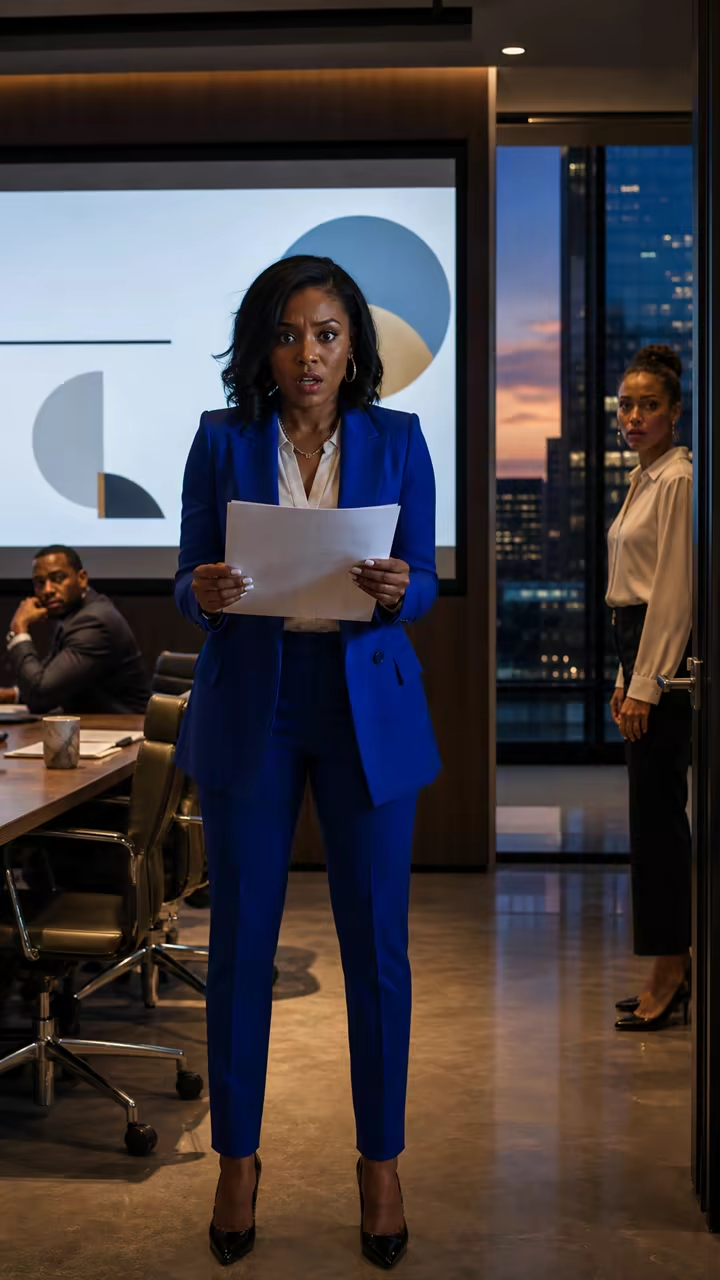
Two siblings discover a hidden photograph inside an old recipe book. One object drives the scene, the camera moves slowly, and the clip ends before the secret is explained. This structure gives an editor a strong shot to connect with later clips.
Try a Family Drama Beat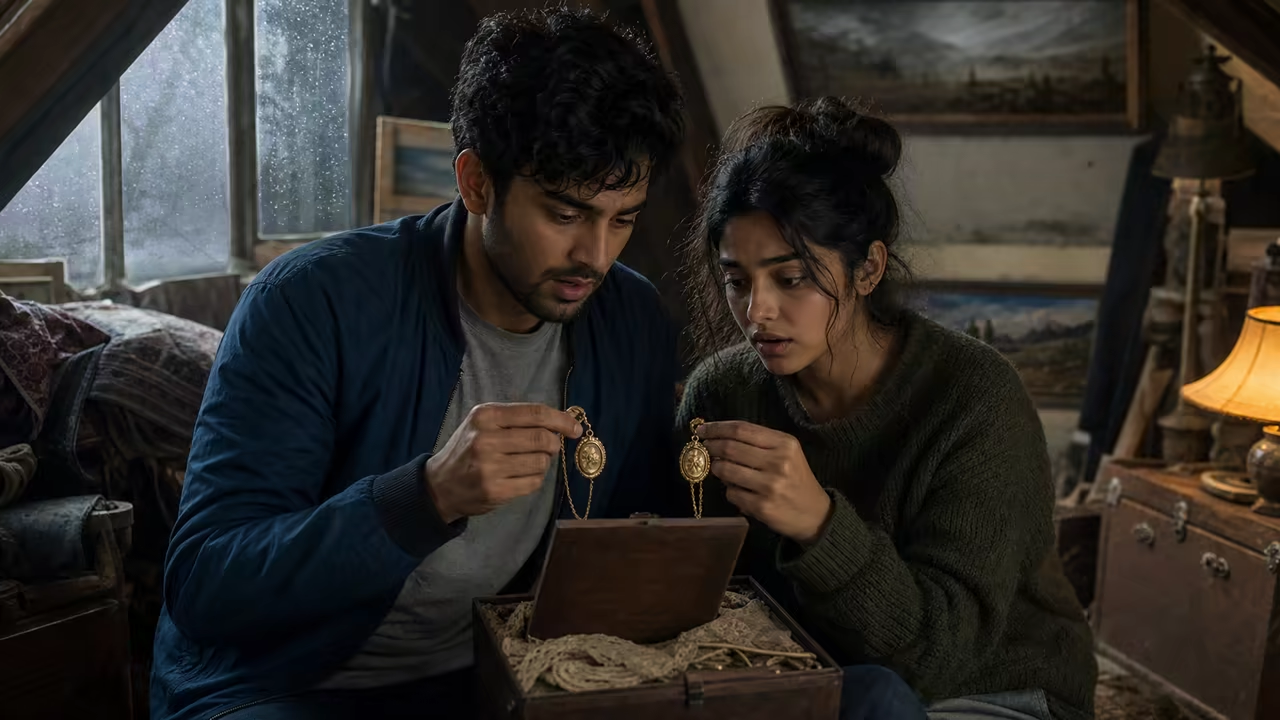
A short prose scene or screenplay excerpt is useful source material, but the video prompt should describe what the camera can see. Reduce the script to one dramatic beat before generation. A practical order is: format and location, character appearance, conflict, physical action, camera, lighting, mood, and the final visual beat. Leave spoken lines, backstory, and edits for your script or timeline rather than asking one clip to perform an entire sequence.
Choose the exact moment that changes the scene: a hidden message is found, a person recognizes someone, evidence is placed on a table, or a door opens. One visible turn gives the clip a beginning and an ending.
Replace abstract notes such as “she feels betrayed” with visible behavior: she closes the laptop, steadies her breath, and slides the sketchbook forward. Physical actions are easier for a video model to render.
Use one controlled move such as a slow push-in, small arc, locked close-up, or gentle lateral slide. Multiple cuts, time jumps, and complex blocking create more room for faces and space to drift.
Use the generator as a shot-development tool. Each generation should answer one question about the scene before you spend time building a longer sequence.
Start with text to video when the scene is still exploratory. Switch to image to video and upload one clear, original reference when you already know the character look, wardrobe, location, or framing.
Select 9:16 for vertical micro-drama hooks, 16:9 for cinematic storyboards, or 1:1 for flexible previews. Compose the prompt for that frame instead of cropping important action later.
Check face stability, hand movement, prop continuity, camera direction, and the final beat. If a result drifts, simplify the movement or shorten the prompt before increasing scene complexity.
Save the strongest clip, then create the next beat as a separate shot. Arrange clips, dialogue, captions, sound design, and transitions in your editor to produce a finished micro-drama.
The strongest use cases need fast visual evidence rather than an automatically finished show. Treat the output as a clip you can review, pitch, edit, or publish when it fits your project.
Try several opening reveals in 9:16 and compare which visual premise reads fastest before writing or shooting a longer vertical story.
Turn a scene beat into moving reference for a director, editor, client, or creative team. The clip can clarify mood and framing without pretending to replace production planning.
Visualize an original suspense, romance, workplace, family, or fantasy moment for an internal deck or early concept review.
No prompt can guarantee perfect continuity across separate AI video generations. These production habits can make a group of drafts easier to edit together.
Create or photograph an original reference with a clear face, simple wardrobe, neutral pose, and uncluttered light. Reuse that frame for related shots and repeat the same concrete appearance details in every prompt.
Upload a Reference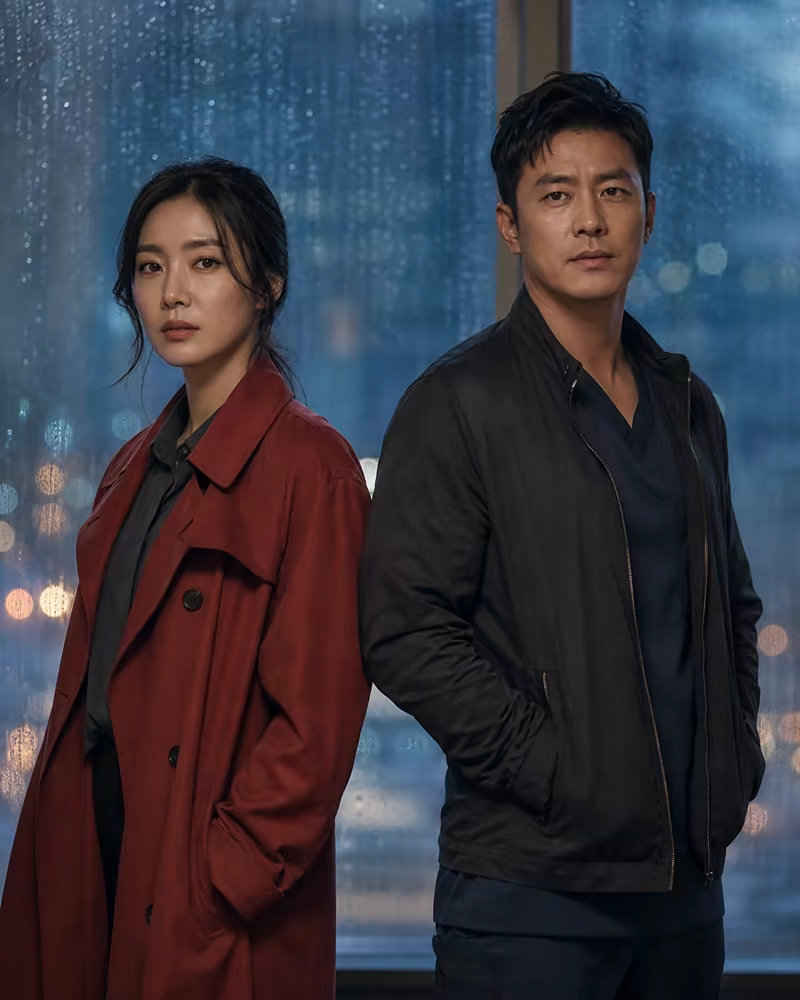
Repeat the location, time of day, wardrobe, key prop, color palette, and camera direction. Change only the action needed for the next beat. If a face or object drifts, regenerate that shot rather than claiming perfect consistency.
Draft One Shot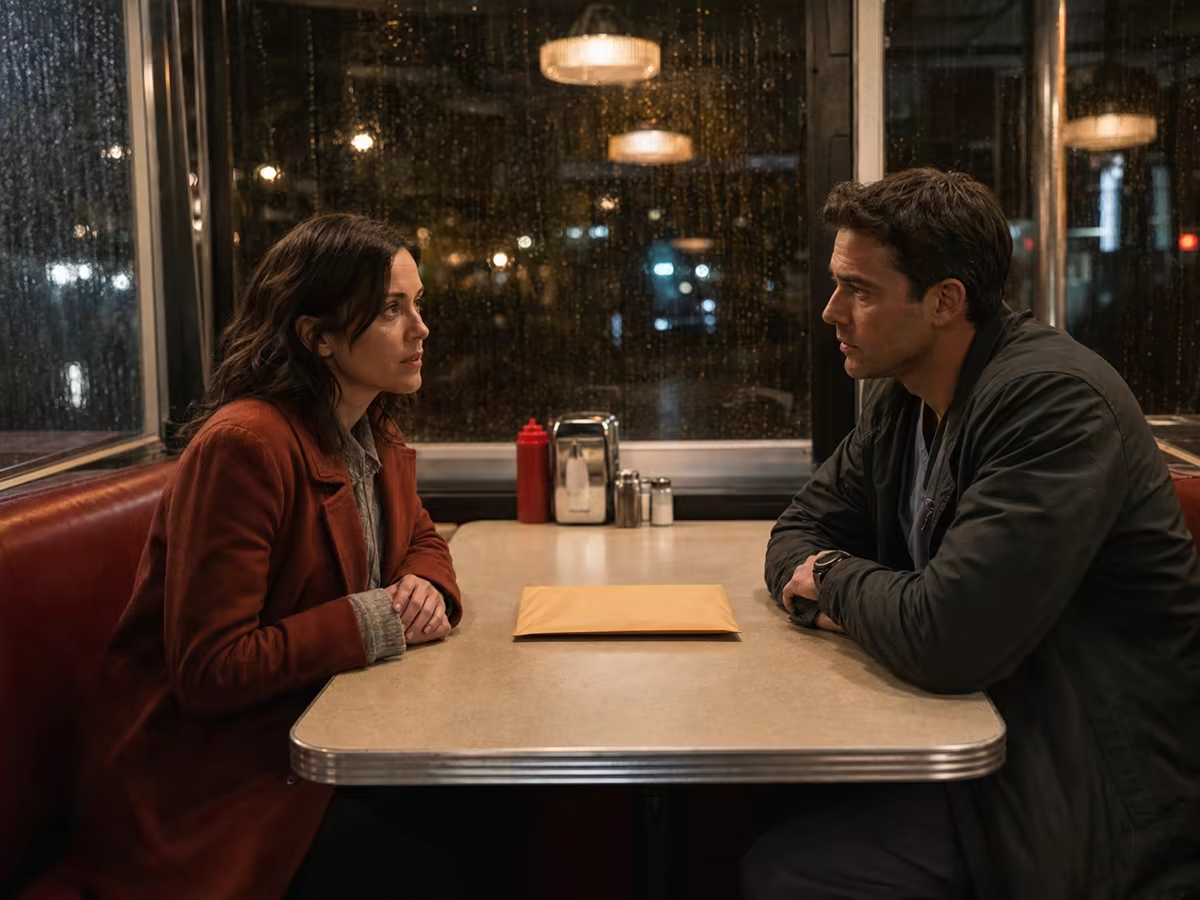
Clear answers about scope, references, framing, audio, and assembling a longer story.
An AI drama generator turns a written scene prompt or a reference image into a short video clip. In Picloft, the practical output is one continuous drama beat at a time, suitable for a micro-drama hook, storyboard draft, pitch sample, or shot that you later edit with other clips.
No. This workflow does not automatically produce a complete multi-scene episode. Split a longer script into scene beats, generate each short clip separately, then assemble the selected clips, dialogue, captions, music, and transitions in a video editor.
Use text to video for quick scene exploration. Use image to video when you have an original character portrait or storyboard frame that should guide appearance, composition, wardrobe, or color. A reference improves guidance but does not guarantee exact identity consistency.
Perfect character consistency is not guaranteed across separate generations. Reuse one clean reference, repeat the same appearance and wardrobe details, preserve location and prop anchors, and regenerate shots that drift before editing the sequence.
Yes. Choose 9:16 for vertical micro-drama hooks and mobile-first story clips. You can switch to 16:9 for a landscape storyboard or cinematic test, or 1:1 for a square concept preview.
Do not rely on this page for synchronized spoken dialogue or a finished soundtrack. Some video generations can include model-generated sound when the option is enabled, but results vary. Add final dialogue, voice, captions, music, and sound design during editing.
Your permitted use depends on the source material, selected model, account terms, and local law. Use original or properly licensed references, avoid celebrity or protected-character imitation, review Picloft terms and the applicable model terms, and obtain legal advice for high-risk campaigns.
Choose one visible conflict, pick 9:16 or 16:9, and create a short scene clip you can review before building the next shot.